CMDB
The CMDB (Configuration Management Database) module provides centralized asset inventory management and infrastructure relationship mapping. It is accessible from the sidebar under Tools → CMDB.
The module contains two tabs: Infrastructure and Relations.
Note
CMDB is available to the admin role only. A user with any other role who opens the module sees
“This page is accessible for administrator users only.” instead of the tabs. The same restriction
applies to Agents, Archive, Integrations, Network Probe, CRUD, XLSX Import, Index Management, Tasks,
and Scheduler.
Infrastructure
The Infrastructure tab displays all registered data sources in a paginated table. Use this view to maintain an inventory of hosts, agents, and other assets sending data to the system.
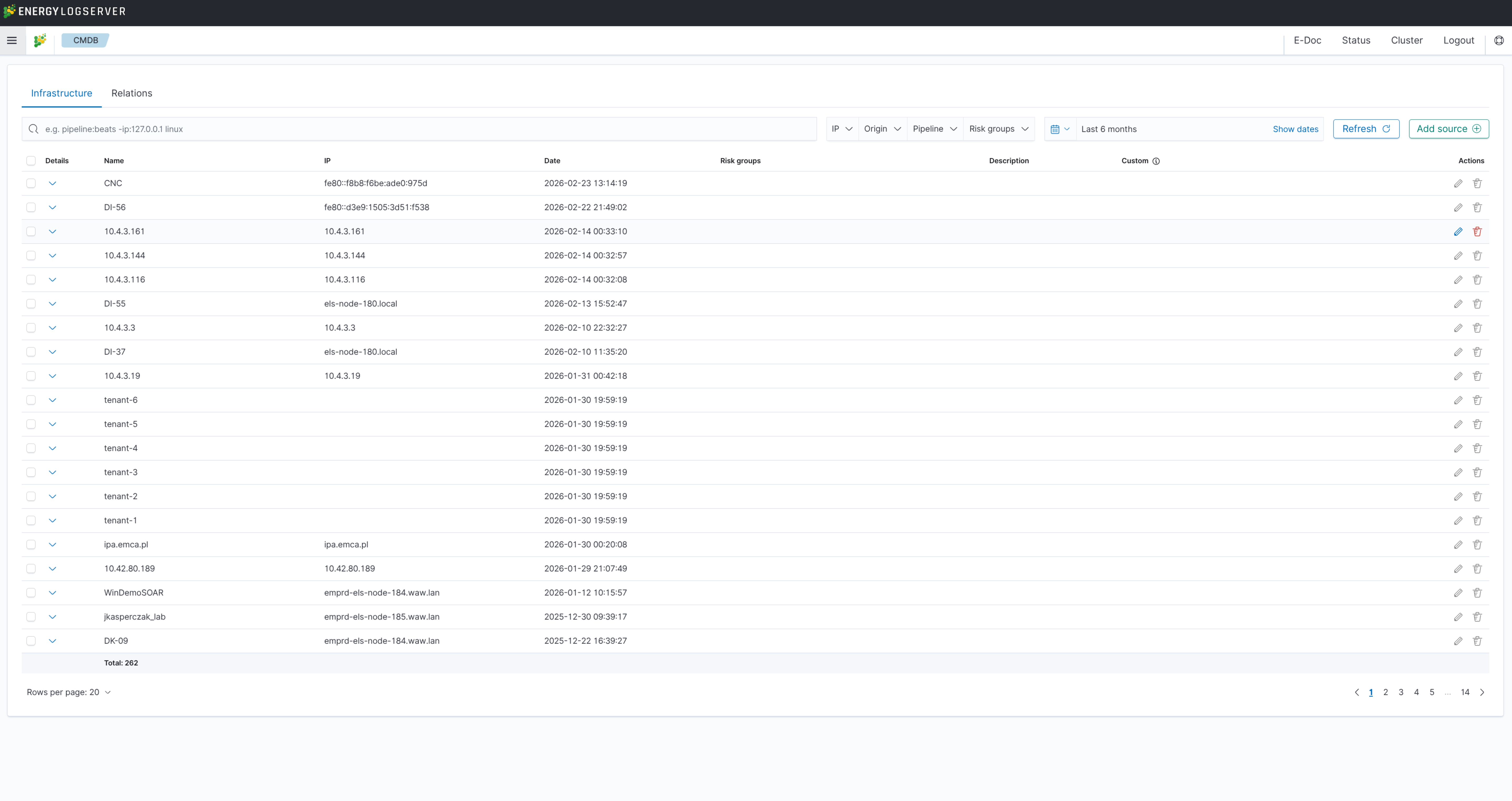
The table contains the following columns:
Column |
Description |
|---|---|
Details |
Expand the row to view additional attributes (pipeline, origin) |
Name |
Asset name or hostname |
IP |
IP address of the source |
Date |
Timestamp of the last recorded activity |
Risk groups |
Assigned risk classification groups |
Description |
Free-text description of the asset |
Actions |
Edit or delete the entry |
The toolbar above the table provides the following filters:
Search bar: free-text search (e.g.,
pipeline:beats -ip:127.0.0.1 linux)IP: filter by IP address
Origin: filter by data origin
Pipeline: filter by processing pipeline
Risk groups: filter by assigned risk group
Date range: restrict results to a specific time window (with Show dates toggle)
Available actions:
Refresh: reload the table with current data
Add source: manually register a new infrastructure asset by providing its name, IP, pipeline, origin, description, and risk groups
Each row provides Edit (pencil icon) and Delete (trash icon) actions in the Actions column.
Relations
The Relations tab maps connections between infrastructure assets. Each relation defines a source, one or more destinations, and an associated risk group.
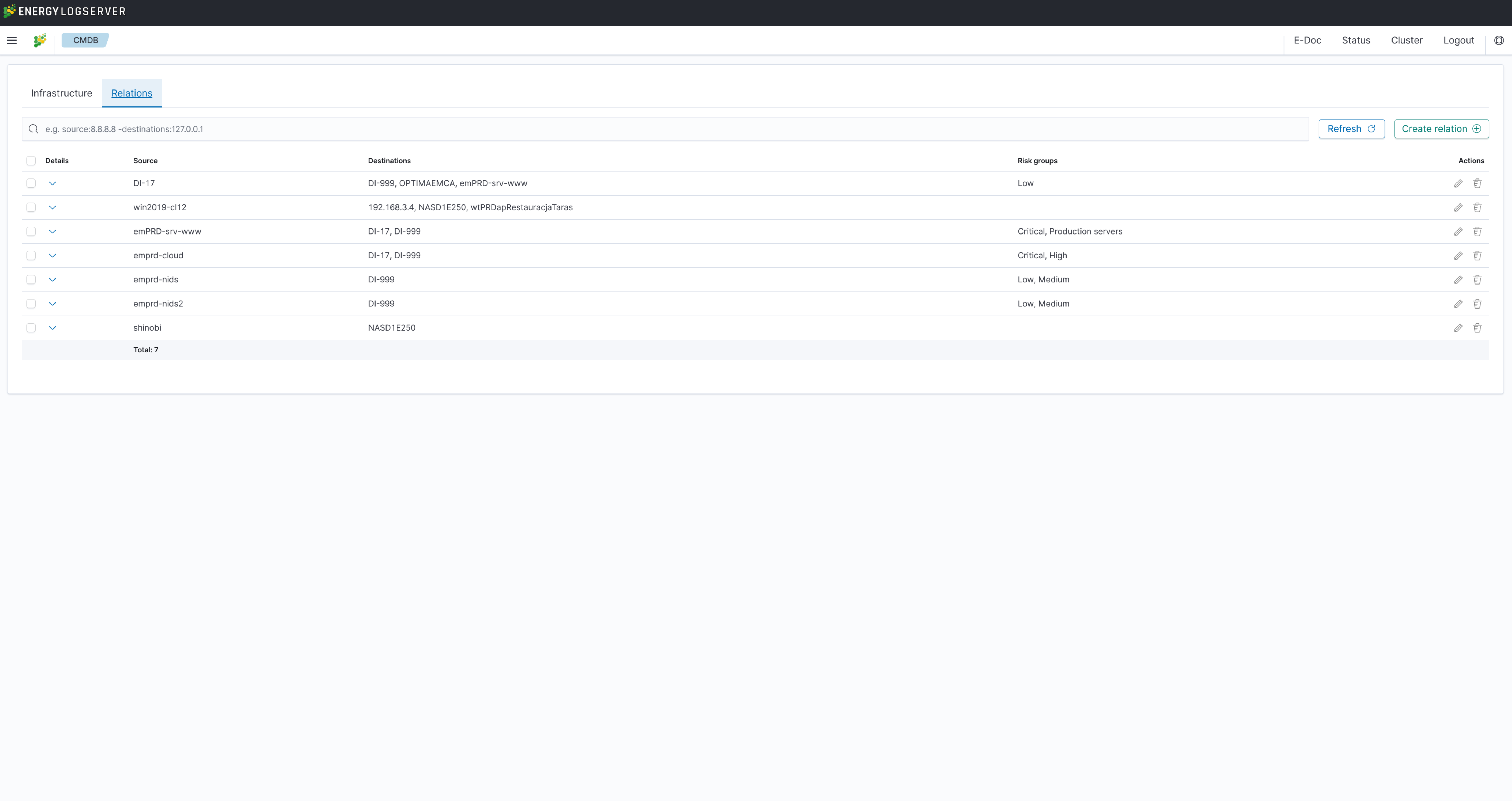
The table contains the following columns:
Column |
Description |
|---|---|
Details |
Expand the row to view additional attributes |
Source |
The originating asset in the relation |
Destinations |
One or more target assets connected to the source |
Risk groups |
Risk classification assigned to the relation |
Actions |
Edit or delete the relation |
Use the search bar to filter relations by source or destination (e.g., source:8.8.8.8 -destinations:127.0.0.1).
Available actions:
Refresh: reload the relations table
Create relation: define a new relation by selecting a source, one or more destinations, and a risk group