Troubleshooting
Network Probe Troubleshooting
Network Probe registration and management is handled by the license-service. The commands below operate on this service.
Debugging
To check probe’s logs:
journalctl -fu license-service
By default, only errors and warnings are logged. To change that, and enable for example debug level, set log_level: DEBUG in the /opt/license-service/license-service.conf file.
Another operation in progress
The message shown below may be encountered during actions performed on both files and pipelines.
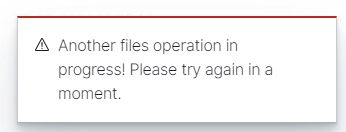
It means that the system is already performing some actions, and in order to ensure the consistency of files, it is necessary to wait until previous actions are completed. After waiting a while, try again to perform the desired action and it should succeed without any problem.
“certificate signature failure” on One Click
Symptoms: During an integration installation, the pipeline step (“Loading pipelines”) fails with a message such as:
Probe <name>: unable to execute operation! certificate signature failure
This is not specific to a single integration. Any component installed through One Click fails at the same step when the underlying condition is present, because they all go through the same channel.
Cause: The GUI talks to the probe agent over https://<host>:9000 (the license-service, using mutual TLS). By default the GUI validates the agent’s certificate signature against the certificate authority /opt/license-service/ssl/license_service_CA.crt. This is controlled by network-probe.verificationMode in /etc/logserver-gui/logserver-gui.yml, whose default value is certificate. The message means the CA the GUI trusts has drifted from the certificate the agent serves on :9000. This happens after the license-service certificates are regenerated without reissuing the server certificate, or in a distributed deployment where the probe has its own CA that was not added to the GUI trust store.
Verification (on the host where license-service runs):
echo | openssl s_client -connect <PROBE_IP>:9000 -CAfile /opt/license-service/ssl/license_service_CA.crt 2>&1 | grep -i verify
openssl verify -CAfile /opt/license-service/ssl/license_service_CA.crt /opt/license-service/ssl/license_service.crt
A result of error 7 / certificate signature failure confirms the certificate mismatch.
Resolution: Bring the license-service certificates back into agreement, so that the CA the GUI trusts is the same CA that signed the agent certificate served on :9000. In a distributed deployment, add the probe’s CA to the GUI trust store. Then restart the services:
systemctl restart license-service logserver-gui
Temporary workaround (not recommended in production): set network-probe.verificationMode: none in /etc/logserver-gui/logserver-gui.yml and restart logserver-gui. This disables validation of the probe agent certificate and should be reverted once the certificates are synchronized.
Restarting the probe
To restart the service enter:
systemctl restart license-service
Removing already registered probe
If the probe is running stop the service:
systemctl stop license-service
Open the “Network Probes” tab in the GUI and go into the details of the probe you are interested in.
After opening the details, copy the opened url and cut out the id located between the
/app/network_probe/probes/and/servicessections. In the url below the id is the long hexadecimal string between them.https://127.0.0.1:5601/app/network_probe/probes/f7fdb48bf5252cb41ab4162d96144a0d463b7ae5330bae6f37f501cb97fb272d199a59cc97bfdc1d2fd46e981ae42a8a59c66a40932c4bce27d786efe1f2dcc3/services
Execute the following query, replacing
$IDwith the value obtained in the previous step, as well as$USERand$PASSWORDto Data Node:curl -u$USER:$PASSWORD -XDELETE '127.0.0.1:9200/.networkprobes/_doc/$ID'
Re-registering probe
If you have a problem with the probe and would like to re-register it, you have to:
Follow the steps in the previous section - Removing already registered probe.
Remove the following file:
/opt/license-service/hashKeyKS.p12.network_probe.Start the probe:
systemctl start license-service
The probe will be registered as a brand new one, if the license allows it and free slots are available.
Authentication Troubleshooting
System accounts returning 401 / GUI authentication errors
Symptoms: The GUI shows “Error while fetching user details”, API calls with valid credentials return HTTP 401, or license-service enters a crash loop.
The most common cause is a desynchronization between the .auth index and the keystore or service configuration files. This can happen after an upgrade, a partial restore, or manual intervention.
Step 1, Re-sync credentials
Run the password utility on the client node:
/usr/share/logserver/utils/logserver-password-util.sh update_services --yes
This propagates the keystore credentials to all service configuration files and restarts the affected services. If credentials in the keystore are correct but service configs drifted, this resolves the issue without any index changes.
Step 2, Verify cluster health
curl -u $USER:$PASSWORD http://127.0.0.1:9200/_cluster/health?pretty
Check that the cluster is green and the .auth index is present:
curl -u $USER:$PASSWORD http://127.0.0.1:9200/_cat/indices/.auth*?v
Step 3, If the above does not resolve the issue
Temporarily disable the logserver_auth plugin to regain API access, following the procedure in Plugins Management. After disabling, run the password utility again to ensure keystore and configs are consistent, then re-enable the plugin.
Warning
Disabling logserver_auth removes authentication enforcement on the Data Node API for the duration. Isolate the node from external network access before proceeding.