PPL - Piped Processing Language
Piped Processing Language (PPL) is a query language that lets you use pipe (|) syntax to explore, discover, and query data stored in Energy Logserver.
To quickly get up and running with PPL, use SQL in Energy Logserver Dashboards.
The PPL syntax consists of commands delimited by the pipe character (|) where data flows from left to right through each pipeline.
search command | command 1 | command 2 ...
You can only use read-only commands like search, where, fields, rename, dedup, stats, sort, eval, head, top, and rare.
Quick start
To get started with PPL, choose Dev Tools in Energy Logserver Dashboards and use the bulk operation to index some sample data:
PUT accounts/_bulk?refresh
{"index":{"_id":"1"}}
{"account_number":1,"balance":39225,"firstname":"Amber","lastname":"Duke","age":32,"gender":"M","address":"880 Holmes Lane","employer":"Pyrami","email":"amberduke@pyrami.com","city":"Brogan","state":"IL"}
{"index":{"_id":"6"}}
{"account_number":6,"balance":5686,"firstname":"Hattie","lastname":"Bond","age":36,"gender":"M","address":"671 Bristol Street","employer":"Netagy","email":"hattiebond@netagy.com","city":"Dante","state":"TN"}
{"index":{"_id":"13"}}
{"account_number":13,"balance":32838,"firstname":"Nanette","lastname":"Bates","age":28,"gender":"F","address":"789 Madison Street","employer":"Quility","city":"Nogal","state":"VA"}
{"index":{"_id":"18"}}
{"account_number":18,"balance":4180,"firstname":"Dale","lastname":"Adams","age":33,"gender":"M","address":"467 Hutchinson Court","email":"daleadams@boink.com","city":"Orick","state":"MD"}
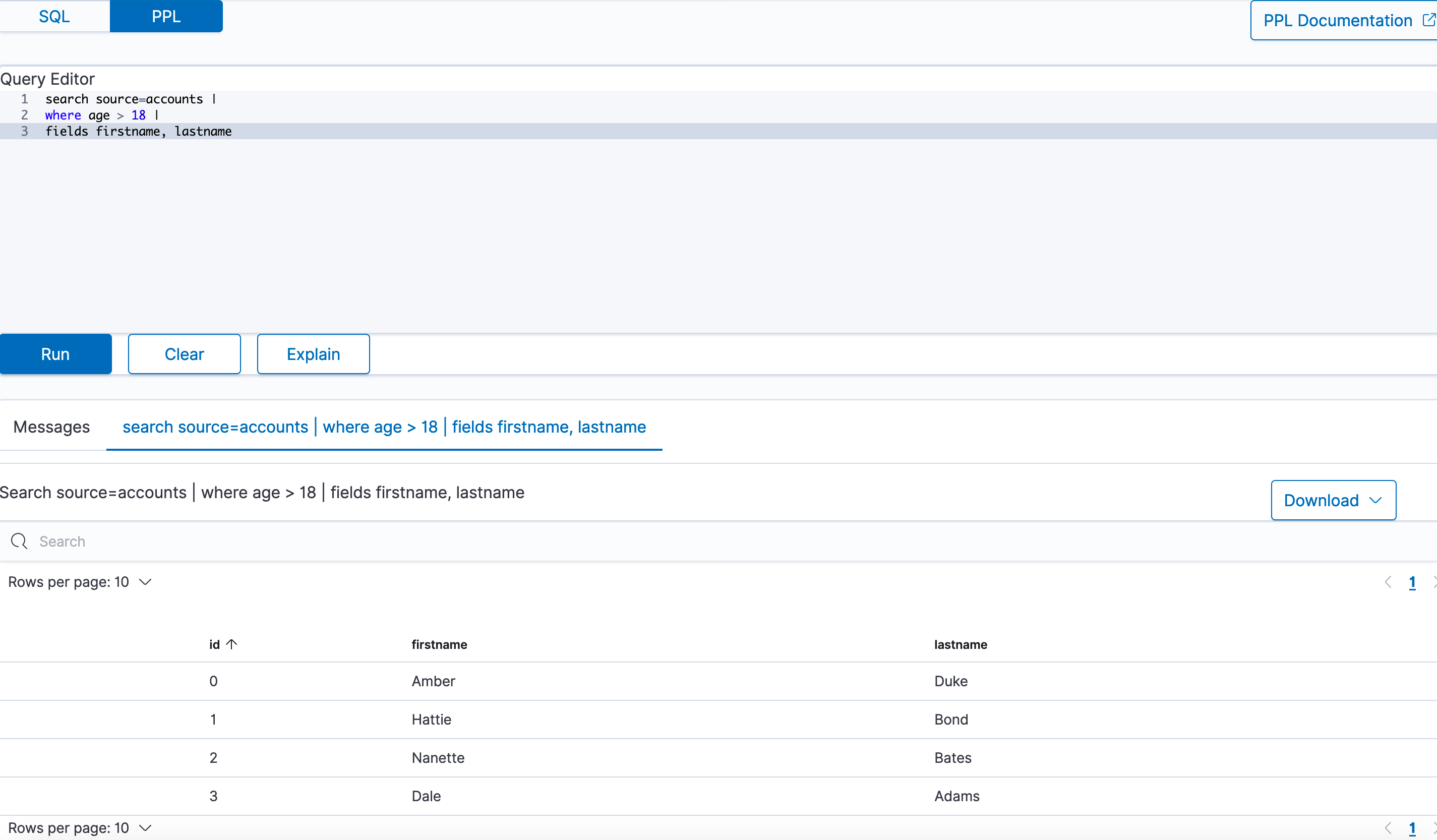
Go to Dev Tools → Query Workbench, then select the PPL language tab.
The following example returns firstname and lastname fields for documents in an accounts index with age greater than 18:
search source=accounts
| where age > 18
| fields firstname, lastname
Example response
firstname |
lastname |
|---|---|
Amber |
Duke |
Hattie |
Bond |
Nanette |
Bates |
Dale |
Adams |
PPL syntax
Every PPL query starts with the search command. It specifies the index to search and retrieve documents from. Subsequent commands can follow in any order.
Currently, PPL supports only one search command, which can be omitted to simplify the query.
Syntax
search source=<index> [boolean-expression]
source=<index> [boolean-expression]
Field |
Description |
Required |
|---|---|---|
search |
Specifies search keywords. |
Yes |
index |
Specifies which index to query from. |
No |
bool-expression |
Specifies an expression that evaluates to a Boolean value. |
No |
Examples
Example 1: Search through accounts index
In the following example, the search command refers to an accounts index as the source and uses fields and where commands for the conditions:
search source=accounts
| where age > 18
| fields firstname, lastname
In the following examples, angle brackets < > enclose required arguments and square brackets [ ] enclose optional arguments.
Example 2: Get all documents
To get all documents from the accounts index, specify it as the source:
search source=accounts;
account_number |
firstname |
address |
balance |
gender |
city |
employer |
state |
age |
lastname |
|
|---|---|---|---|---|---|---|---|---|---|---|
1 |
Amber |
880 Holmes Lane |
39225 |
M |
Brogan |
Pyrami |
IL |
32 |
amberduke@pyrami.com |
Duke |
6 |
Hattie |
671 Bristol Street |
5686 |
M |
Dante |
Netagy |
TN |
36 |
hattiebond@netagy.com |
Bond |
13 |
Nanette |
789 Madison Street |
32838 |
F |
Nogal |
Quility |
VA |
28 |
null |
Bates |
18 |
Dale |
467 Hutchinson Court |
4180 |
M |
Orick |
null |
MD |
33 |
daleadams@boink.com |
Adams |
Example 3: Get documents that match a condition
To get all documents from the accounts index that either have account_number equal to 1 or have gender as F, use the following query:
search source=accounts account_number=1 or gender=\"F\";
account_number |
firstname |
address |
balance |
gender |
city |
employer |
state |
age |
lastname |
|
|---|---|---|---|---|---|---|---|---|---|---|
1 |
Amber |
880 Holmes Lane |
39225 |
M |
Brogan |
Pyrami |
IL |
32 |
amberduke@pyrami.com |
Duke |
13 |
Nanette |
789 Madison Street |
32838 |
F |
Nogal |
Quility |
VA |
28 |
null |
Bates |
Commands
PPL supports all SQL common functions, including relevance search, but also introduces few more functions (called commands) which are available in PPL only.
dedup
The dedup (data deduplication) command removes duplicate documents defined by a field from the search result.
Syntax
dedup [int] <field-list> [keepempty=<bool>] [consecutive=<bool>]
Field |
Description |
Type |
Required |
Default |
|---|---|---|---|---|
int |
Retain the specified number of duplicate events for each combination. The number must be greater than 0. If you do not specify a number, only the first occurring event is kept and all other duplicates are removed from the results. |
string |
No |
1 |
keepempty |
If true, keep the document if any field in the field list has a null value or a field missing. |
nested list of objects |
No |
False |
consecutive |
If true, remove only consecutive events with duplicate combinations of values. |
Boolean |
No |
False |
field-list |
Specify a comma-delimited field list. At least one field is required. |
String or comma-separated list of strings |
Yes |
- |
Example 1: Dedup by one field
To remove duplicate documents with the same gender:
search source=accounts | dedup gender | fields account_number, gender;
account_number |
gender |
|---|---|
1 |
M |
13 |
F |
Example 2: Keep two duplicate documents
To keep two duplicate documents with the same gender:
search source=accounts | dedup 2 gender | fields account_number, gender;
account_number |
gender |
|---|---|
1 |
M |
6 |
M |
13 |
F |
Example 3: Keep or ignore an empty field by default
To keep two duplicate documents with a null field value:
search source=accounts | dedup email keepempty=true | fields account_number, email;
account_number |
|
|---|---|
1 |
amberduke@pyrami.com |
6 |
hattiebond@netagy.com |
13 |
null |
18 |
daleadams@boink.com |
To remove duplicate documents with the null field value:
search source=accounts | dedup email | fields account_number, email;
account_number |
|
|---|---|
1 |
amberduke@pyrami.com |
6 |
hattiebond@netagy.com |
18 |
daleadams@boink.com |
Example 4: Dedup of consecutive documents
To remove duplicates of consecutive documents:
search source=accounts | dedup gender consecutive=true | fields account_number, gender;
account_number |
gender |
|---|---|
1 |
M |
13 |
F |
18 |
M |
Limitations
The dedup command is not rewritten to Energy Logserver DSL, it is only executed on the coordination node.
eval
The eval command evaluates an expression and appends its result to the search result.
Syntax
eval <field>=<expression> ["," <field>=<expression> ]...
Field |
Description |
Required |
|---|---|---|
field |
If a field name does not exist, a new field is added. If the field name already exists, it’s overwritten. |
Yes |
expression |
Specify any supported expression. |
Yes |
Example 1: Create a new field
To create a new doubleAge field for each document. doubleAge is the result of age multiplied by 2:
search source=accounts | eval doubleAge = age * 2 | fields age, doubleAge;
age | doubleAge |
|
|---|---|
32 |
64 |
36 |
72 |
28 |
56 |
33 |
66 |
Example 2: Overwrite the existing field
To overwrite the age field with age plus 1:
search source=accounts | eval age = age + 1 | fields age;
age |
|---|
33 |
37 |
29 |
34 |
Example 3: Create a new field with a field defined with the eval command
To create a new field ddAge. ddAge is the result of doubleAge multiplied by 2, where doubleAge is defined in the eval command:
search source=accounts | eval doubleAge = age * 2, ddAge = doubleAge * 2 | fields age, doubleAge, ddAge;
age |
doubleAge |
ddAge |
|---|---|---|
32 |
64 |
128 |
36 |
72 |
144 |
28 |
56 |
112 |
33 |
66 |
132 |
Limitation
The eval command is not rewritten to Energy Logserver DSL, it is only executed on the coordination node.
fields
Use the fields command to keep or remove fields from a search result.
fields Syntax
fields [+|-] <field-list>
Field |
Description |
Required |
Default |
|---|---|---|---|
index |
Plus (+) keeps only fields specified in the field list. Minus (-) removes all fields specified in the field list. |
No |
+ |
field list |
Specify a comma-delimited list of fields. |
Yes |
No default |
Example 1: Select specified fields from result
To get account_number, firstname, and lastname fields from a search result:
search source=accounts | fields account_number, firstname, lastname;
account_number |
firstname |
lastname |
|---|---|---|
1 |
Amber |
Duke |
6 |
Hattie |
Bond |
13 |
Nanette |
Bates |
18 |
Dale |
Adams |
Example 2: Remove specified fields from a search result
To remove the account_number field from the search results:
search source=accounts | fields account_number, firstname, lastname | fields - account_number;
firstname |
lastname |
|---|---|
Amber |
Duke |
Hattie |
Bond |
Nanette |
Bates |
Dale |
Adams |
parse
Use the parse command to parse a text field using regular expression and append the result to the search result.
parse Syntax
parse <field> <regular-expression>
Field |
Description |
Required |
|---|---|---|
field |
A text field. |
Yes |
regular-expression |
The regular expression used to extract new fields from the given test field. If a new field name exists, it will replace the original field. |
Yes |
The regular expression is used to match the whole text field of each document with Java regex engine. Each named capture group in the expression will become a new STRING field.
Example 1: Create new field
The example shows how to create new field host for each document. host will be the hostname after @ in email field. Parsing a null field will return an empty string.
os> source=accounts | parse email '.+@(?<host>.+)' | fields email, host ;
fetched rows / total rows = 4/4
host |
|
|---|---|
amberduke@pyrami.com |
pyrami.com |
hattiebond@netagy.com |
netagy.com |
null |
null |
daleadams@boink.com |
boink.com |
Example 2: Override the existing field
The example shows how to override the existing address field with street number removed.
os> source=accounts | parse address '\d+ (?<address>.+)' | fields address ;
fetched rows / total rows = 4/4
address |
|---|
Holmes Lane |
Bristol Street |
Madison Street |
Hutchinson Court |
Example 3: Filter and sort be casted parsed field
The example shows how to sort street numbers that are higher than 500 in address field.
os> source=accounts | parse address '(?<streetNumber>\d+) (?<street>.+)' | where cast(streetNumber as int) > 500 | sort num(streetNumber) | fields streetNumber, street ;
fetched rows / total rows = 3/3
streetNumber |
street |
|---|---|
671 |
Bristol Street |
789 |
Madison Street |
880 |
Holmes Lane |
Limitations (parse)
A few limitations exist when using the parse command:
Fields defined by parse cannot be parsed again. For example,
source=accounts | parse address '\d+ (?<street>.+)' | parse street '\w+ (?<road>\w+)' ;will fail to return any expressions.Fields defined by parse cannot be overridden with other commands. For example, when entering
source=accounts | parse address '\d+ (?<street>.+)' | eval street='1' | where street='1' ;wherewill not match any documents sincestreetcannot be overridden.The text field used by parse cannot be overridden. For example, when entering
source=accounts | parse address '\d+ (?<street>.+)' | eval address='1' ;streetwill not be parse since address is overridden.Fields defined by parse cannot be filtered/sorted after using them in the
statscommand. For example,source=accounts | parse email '.+@(?<host>.+)' | stats avg(age) by host | where host=pyrami.com ;wherewill not parse the domain listed.
rename
Use the rename command to rename one or more fields in the search result.
rename Syntax
rename <source-field> AS <target-field>["," <source-field> AS <target-field>]...
Field |
Description |
Required |
|---|---|---|
source-field |
The name of the field that you want to rename. |
Yes |
target-field |
The name you want to rename to. |
Yes |
Example 1: Rename one field
Rename the account_number field as an:
search source=accounts | rename account_number as an | fields an;
an |
|---|
1 |
6 |
13 |
18 |
Example 2: Rename multiple fields
Rename the account_number field as an and employer as emp:
search source=accounts | rename account_number as an, employer as emp | fields an, emp;
an |
emp |
|---|---|
1 |
Pyrami |
6 |
Netagy |
13 |
Quility |
18 |
null |
rename Limitations
The rename command is not rewritten to Energy Logserver DSL, it is only executed on the coordination node.
sort
Use the sort command to sort search results by a specified field.
sort Syntax
sort [count] <[+|-] sort-field>...
Field |
Description |
Required |
Default |
|---|---|---|---|
count |
The maximum number results to return from the sorted result. If count=0, all results are returned. |
No |
1000 |
[+|-] |
Use plus [+] to sort by ascending order and minus [-] to sort by descending order. |
No |
Ascending order |
sort-field |
Specify the field that you want to sort by. |
Yes |
- |
Example 1: Sort by one field
To sort all documents by the age field in ascending order:
search source=accounts | sort age | fields account_number, age;
account_number |
age |
|---|---|
13 |
28 |
1 |
32 |
18 |
33 |
6 |
36 |
Example 2: Sort by one field and return all results
To sort all documents by the age field in ascending order and specify count as 0 to get back all results:
search source=accounts | sort 0 age | fields account_number, age;
account_number |
age |
|---|---|
13 |
28 |
1 |
32 |
18 |
33 |
6 |
36 |
Example 3: Sort by one field in descending order
To sort all documents by the age field in descending order:
search source=accounts | sort - age | fields account_number, age;
account_number |
age |
|---|---|
6 |
36 |
18 |
33 |
1 |
32 |
13 |
28 |
Example 4: Specify the number of sorted documents to return
To sort all documents by the age field in ascending order and specify count as 2 to get back two results:
search source=accounts | sort 2 age | fields account_number, age;
account_number |
age |
|---|---|
13 |
28 |
1 |
32 |
Example 5: Sort by multiple fields
To sort all documents by the gender field in ascending order and age field in descending order:
search source=accounts | sort + gender, - age | fields account_number, gender, age;
account_number |
gender |
age |
|---|---|---|
13 |
F |
28 |
6 |
M |
36 |
18 |
M |
33 |
1 |
M |
32 |
stats
Use the stats command to aggregate from search results.
The following table lists the aggregation functions and also indicates how each one handles null or missing values:
Function |
NULL |
MISSING |
|---|---|---|
COUNT |
Not counted |
Not counted |
SUM |
Ignore |
Ignore |
AVG |
Ignore |
Ignore |
MAX |
Ignore |
Ignore |
MIN |
Ignore |
Ignore |
stats Syntax
stats <aggregation>... [by-clause]...
Field |
Description |
Required |
Default |
|---|---|---|---|
aggregation |
Specify a statistical aggregation function. The argument of this function must be a field. |
Yes |
1000 |
by-clause |
Specify one or more fields to group the results by. If not specified, the stats command returns only one row, which is the aggregation over the entire result set. |
No |
- |
Example 1: Calculate the average value of a field
To calculate the average age of all documents:
search source=accounts | stats avg(age);
avg(age) |
|---|
32.25 |
Example 2: Calculate the average value of a field by group
To calculate the average age grouped by gender:
search source=accounts | stats avg(age) by gender;
gender |
avg(age) |
|---|---|
F |
28.0 |
M |
33.666666666666664 |
Example 3: Calculate the average and sum of a field by group
To calculate the average and sum of age grouped by gender:
search source=accounts | stats avg(age), sum(age) by gender;
gender |
avg(age) |
sum(age) |
|---|---|---|
F |
28 |
28 |
M |
33.666666666666664 |
101 |
Example 4: Calculate the maximum value of a field
To calculate the maximum age:
search source=accounts | stats max(age);
max(age) |
|---|
36 |
Example 5: Calculate the maximum and minimum value of a field by group
To calculate the maximum and minimum age values grouped by gender:
search source=accounts | stats max(age), min(age) by gender;
gender |
min(age) |
max(age) |
|---|---|---|
F |
28 |
28 |
M |
32 |
36 |
where
Use the where command with a bool expression to filter the search result. The where command only returns the result when the bool expression evaluates to true.
where Syntax
where <boolean-expression>
Field |
Description |
Required |
|---|---|---|
bool-expression |
An expression that evaluates to a boolean value. |
No |
Example: Filter result set with a condition
To get all documents from the accounts index where account_number is 1 or gender is F:
search source=accounts | where account_number=1 or gender=\"F\" | fields account_number, gender;
account_number |
gender |
|---|---|
1 |
M |
13 |
F |
head
Use the head command to return the first N number of results in a specified search order.
head Syntax
head [N]
Field |
Description |
Required |
Default |
|---|---|---|---|
N |
Specify the number of results to return. |
No |
10 |
Example 1: Get the first 10 results
To get the first 10 results:
search source=accounts | fields firstname, age | head;
firstname |
age |
|---|---|
Amber |
32 |
Hattie |
36 |
Nanette |
28 |
Example 2: Get the first N results
To get the first two results:
search source=accounts | fields firstname, age | head 2;
firstname |
age |
|---|---|
Amber |
32 |
Hattie |
36 |
head Limitations
The head command is not rewritten to Energy Logserver DSL, it is only executed on the coordination node.
rare
Use the rare command to find the least common values of all fields in a field list.
A maximum of 10 results are returned for each distinct set of values of the group-by fields.
rare Syntax
rare <field-list> [by-clause]
Field |
Description |
Required |
||
|---|---|---|---|---|
field-list |
Specify a comma-delimited list of field names. |
No |
Specify one or more fields to group the results by. |
No |
Example 1: Find the least common values in a field
To find the least common values of gender:
search source=accounts | rare gender;
gender |
|---|
F |
M |
Example 2: Find the least common values grouped by gender
To find the least common age grouped by gender:
search source=accounts | rare age by gender;
gender |
age |
|---|---|
F |
28 |
M |
32 |
M |
33 |
rare Limitations
The rare command is not rewritten to Energy Logserver DSL, it is only executed on the coordination node.
top
Use the top command to find the most common values of all fields in the field list.
top Syntax
top [N] <field-list> [by-clause]
Field |
Description |
Default |
|---|---|---|
N |
Specify the number of results to return. |
10 |
field-list |
Specify a comma-delimited list of field names. |
- |
by-clause |
Specify one or more fields to group the results by. |
- |
Example 1: Find the most common values in a field
To find the most common genders:
search source=accounts | top gender;
gender |
|---|
M |
F |
Example 2: Find the most common value in a field
To find the most common gender:
search source=accounts | top 1 gender;
gender |
|---|
M |
Example 3: Find the most common values grouped by gender
To find the most common age grouped by gender:
search source=accounts | top 1 age by gender;
gender |
age |
|---|---|
F |
28 |
M |
32 |
top Limitations
The top command is not rewritten to Energy Logserver DSL, it is only executed on the coordination node.