Model Library
Each use case relies on a trained model. When you create a new use case, the selected algorithm builds and trains a model from your data. Models can serve a single use case or be saved to the library for reuse across multiple use cases. Models can also be exported and imported between Energy Logserver instances.
Saving a Model
To save a trained model, open the use case from the Use Cases list and click Save Model in the Performance view. The button is available for Anomaly Detection - Text, multivariate Anomaly Detection - Number (Multi values), and Clustering; univariate models cannot be saved to the library. In the Save model to library window, enter the Model Name, optionally a Model Description and an Icon (PNG, JPEG, or SVG), and click Save.
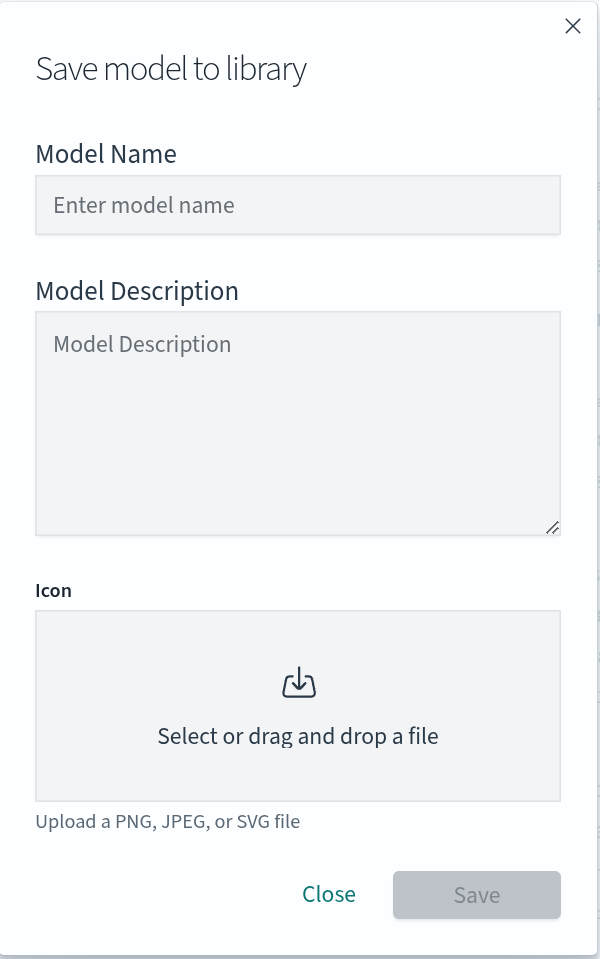
A saved model can be selected in a new use case with AI Model > Take From Model Library.
Model Library Tab
The Model Library tab lists the saved models in the AI Models table.
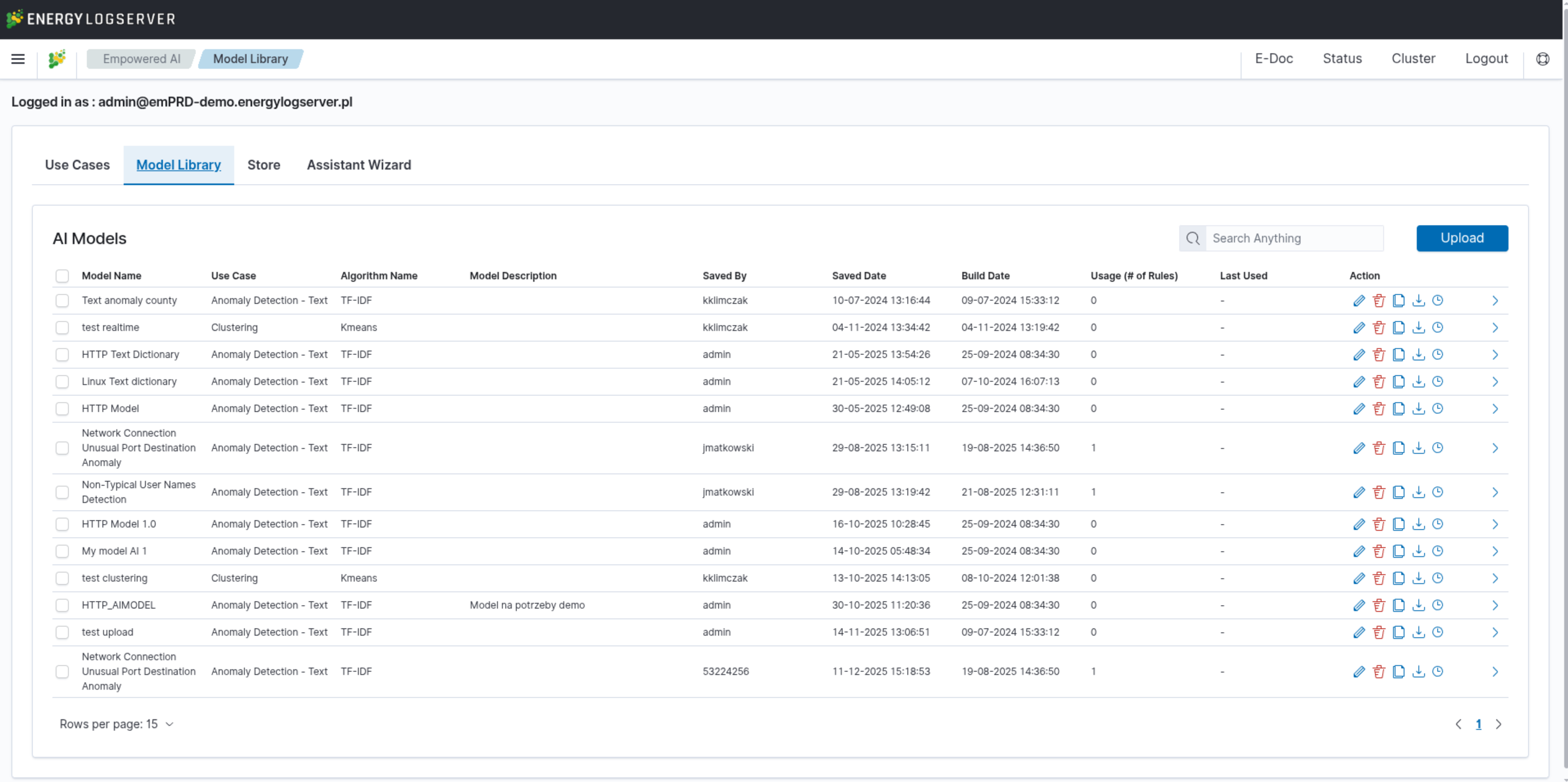
The table shows the Model Name, the Use Case method, the Algorithm Name, the Model Description, who saved the model and when (Saved By, Saved Date), the Build Date, the number of use cases using the model (Usage (# of Rules)), and Last Used. The Action column offers:
Edit: changes the model details.
Delete: deletes the model. If use cases use the model, the confirmation lists them, and they are deleted together with the model.
Make a copy: creates a copy of the model.
Download: saves the model to a file, which you can import in another Energy Logserver instance with the Upload button above the table.
Realtime (clock icon): opens the Realtime Manager described below.
Realtime Manager
Models from the library can run in realtime on Network Probe. Click the clock icon (Realtime) next to a model to open the Realtime Manager. The AI Pipelines table lists the pipelines that already use the model, with the pipeline and Network Probe status.
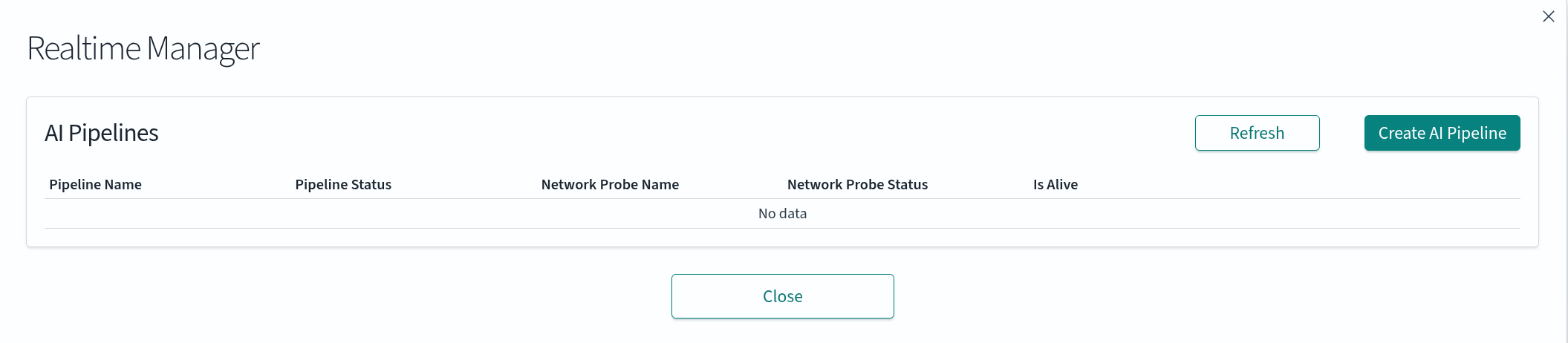
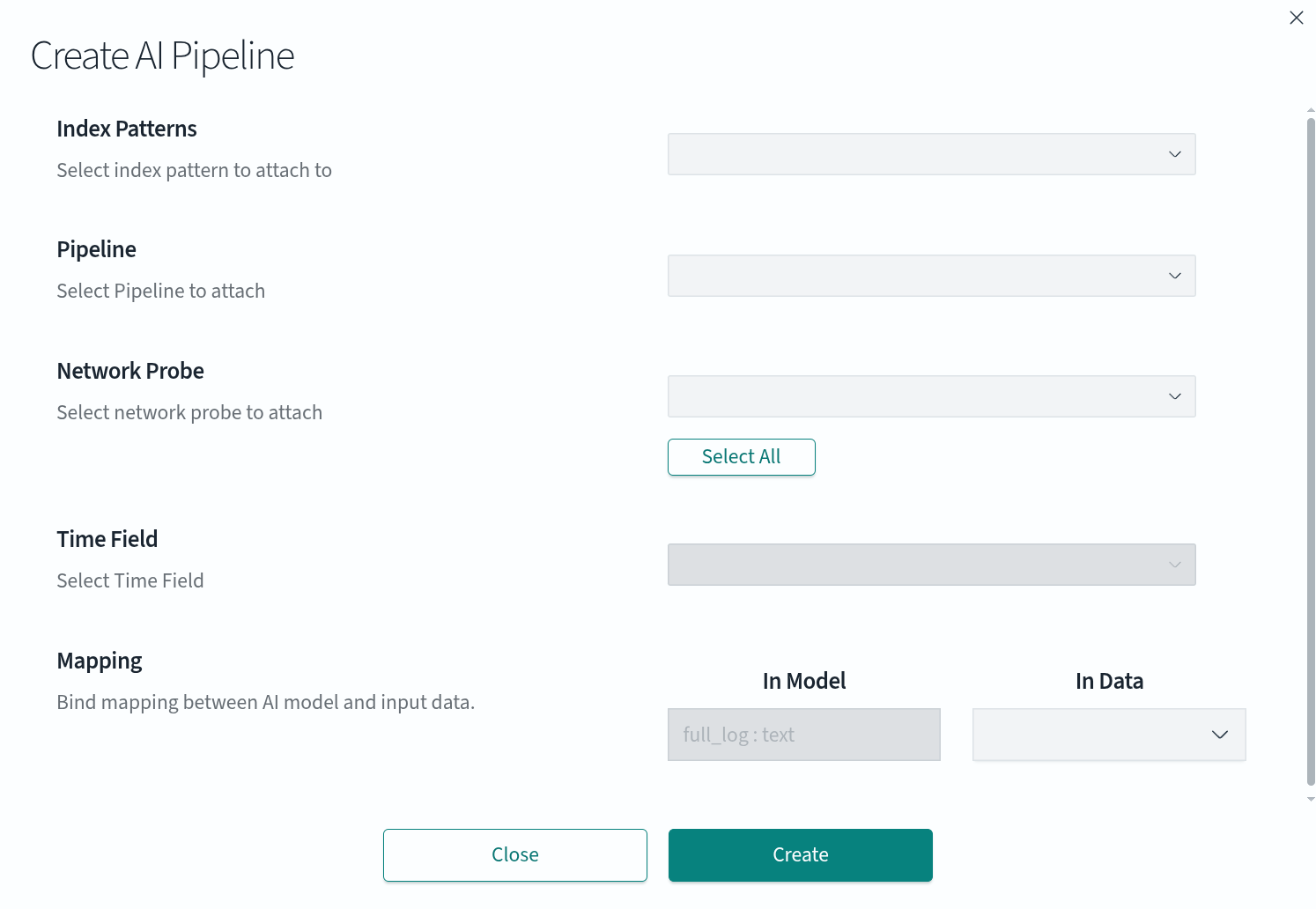
Click Create AI Pipeline to attach the model to an existing Network Probe pipeline:
In Index Patterns, select the index pattern of the data.
In Pipeline, select the pipeline to attach the model to.
In Network Probe, select the probes, or click Select All.
In Time Field, select the time field.
In Mapping, bind each field used by the model (In Model) to a field of the realtime data (In Data). A model trained on one dataset can be reused on another, so field names in the realtime stream may differ from those used during training.
Click Create.
Default AI Rules
Default Rules automatically deploy a set of rules for the syslog, Endpoint Security, HTTPD, UBA, and Barracuda indices at startup, enabling users to quickly start analyzing data.
Default rules are loaded automatically on every service start, 26 of them in total. The service creates only the rules that are missing: a default rule that you changed keeps your changes, and a default rule that you deleted comes back after the next restart. Each one is created with the schedule set to Run Once, so it produces no results until it is started from the Use Cases list or given a schedule. A default rule needs the matching index pattern in Energy Logserver. They are grouped by data source:
Syslog (syslog-*):
Syslog Text Anomaly message
Syslog Univariate network.bytes
Syslog Univariate network.ttl
Syslog Univariate postfix_delay
Syslog Univariate postfix_delay_transmission
Syslog Univariate postfix_size
Syslog Univariate count
Syslog Clustering message
Syslog Forecast network.bytes
Syslog Forecast network.ttl
Syslog Forecast postfix_delay
Syslog Forecast postfix_delay_transmission
Syslog Forecast postfix_size
Syslog Forecast count
The Syslog Forecast rules use the Forecasting method, which is not available in the Select Method field for new use cases.
Endpoint Security (wazuh-alerts-*):
Wazuh-alerts Text Anomaly full_log
Wazuh-alerts Text Anomaly data.win.eventdata.data
HTTPD (httpd*):
Httpd Text Anomaly message
Httpd Clustering message
UBA (uba*):
[UBA]-(D)Dos-Probability (Multivariate)
[UBA]-APT-Probability (Multivariate)
[UBA]-Ransomware-Probability (Multivariate)
[UBA]-all-events-Probability (Multivariate)
[UBA]-logon-anomaly (Univariate)
[UBA]-service-installation-anomaly (Multivariate)
Barracuda (barracuda-*):
[Barracuda] Firewall - Received Bytes Anomaly (Univariate)
[Barracuda] Firewall - Sent Bytes Anomaly (Univariate)
AI Store
The AI Store offers ready-made AI Use Cases that you can fetch and run on your own data. The store needs access to the Energy Logserver repository and the repository credentials from your license.
AI Use Case models can be accessed through the Energy Logserver webpage and the Energy Logserver app on the Store tab of Empowered AI.
To upload the selected model through webpage, follow the steps below:
Downloadthe model you are interested in from the webpage. The file has the.use_caseextension.Open the Energy Logserver app and navigate to the
Use Casestab.Click
Uploadand select the downloaded.use_casefile in the Select Use Case field.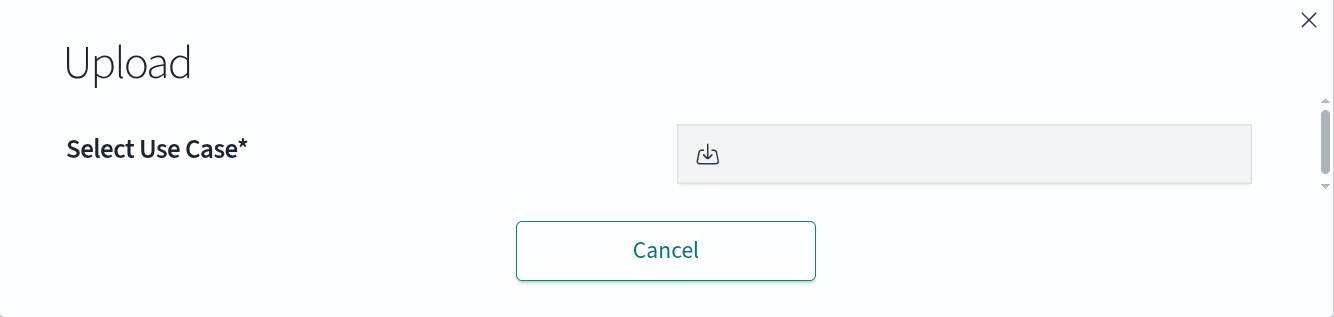
In the Upload Use Case window, press
Save & Runto start the use case. Advanced opens the full use case form, where you can change the category, the data source, and the other settings before saving; the method and the name stay fixed.
To upload the selected model via the Energy Logserver app, follow the steps below:
Navigate to the
Storetab. Each tile shows the use case name, category, method, and a short description; use the Categories list and the search field to narrow the list.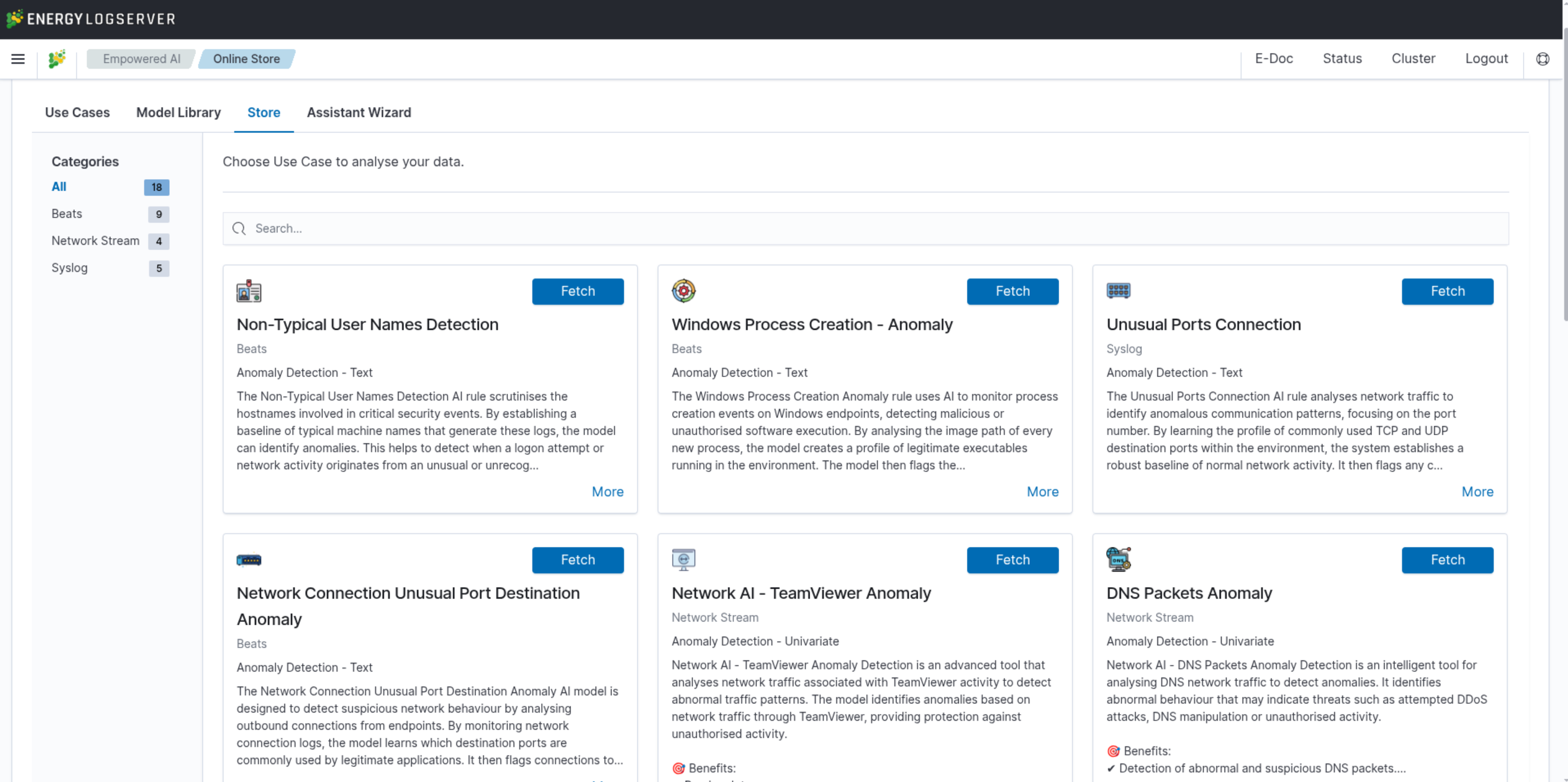
Press the
Fetchbutton on the use case that you are interested in.In the Upload Use Case window, check the Use Case(s) verification issues section, if present. For example, it reports that no indices match the index pattern of the use case.
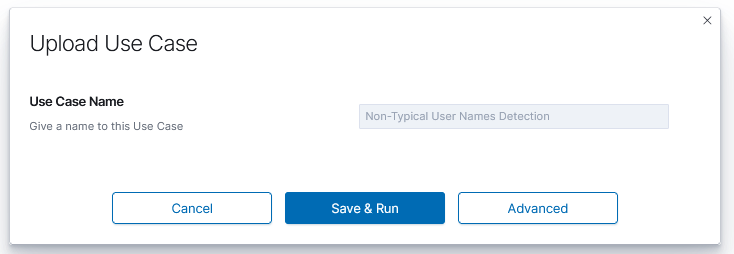
Press
Save & Runto start the use case, or Advanced to adjust the settings first.