AI Assistant
This section covers the integration of Energy Logserver with Large Language Models (LLMs). Configuration here manages the AI Assistant and the AI Agent, both available from the Discover tab. Each LLM provider requires a GPU-capable endpoint where semantic operations can run.
Energy Logserver strongly recommends using local AI resources or trusted providers. Remember, security is always local!
AI on Prem is a dedicated hardware appliance that can be deployed in your local environment.
Everything is configured from Empowered AI → Assistant Wizard, which is split into three tabs: Prompts, Knowledge, and Providers. The sections below follow this order.
Providers
Energy Logserver ships with a predefined LLM provider hosted in the Energy Logserver data center. This provider is available at no additional cost under an active support agreement, and the connection to it uses mutual TLS with the client certificate from your license. For fully local processing, AI on Prem is a hardware appliance ready to operate from your server rack. The following external providers are also supported: Ollama, OpenAI, Fireworks, and HTTP endpoints. Configure each provider in the Providers section with its model name and either its URL or, for OpenAI and Fireworks, an API key.
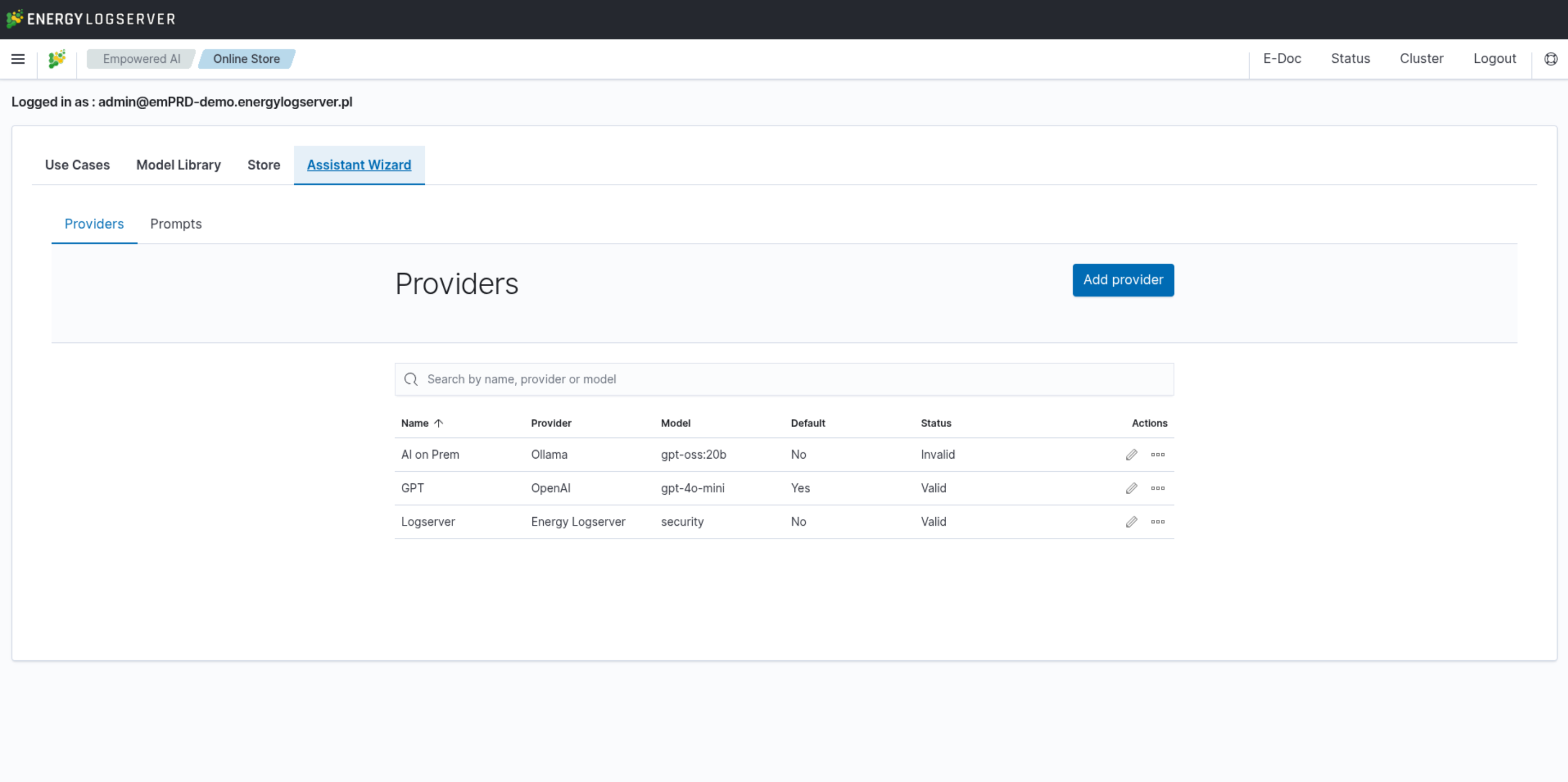
Configuring AI on Prem Connection
AI on Prem is a local hardware solution that allows you to run Large Language Models within your infrastructure, ensuring complete data privacy and compliance. The following steps describe how to configure a connection to AI on Prem using the Energy Logserver provider.
Prerequisites:
Before configuring the connection, ensure that:
AI on Prem hardware is properly connected to your network
The AI on Prem device has been assigned an IP address
Network connectivity between the Energy Logserver GUI node and AI on Prem is allowed in your network firewall rules
Configuration Steps:
Navigate to the Empowered AI module and select the Assistant Wizard tab:
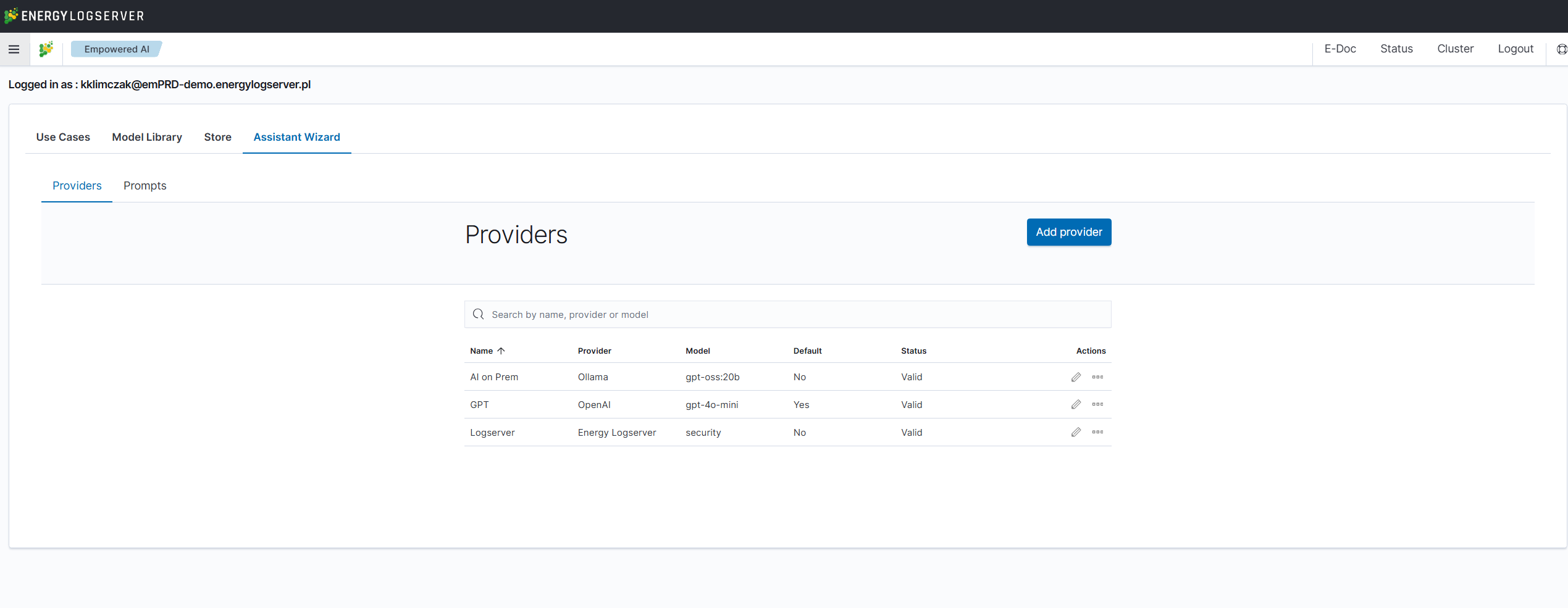
Click Add provider button to create a new provider configuration. In the General section, configure the following:
Name: Provide a descriptive name for your AI on Prem connection (e.g., “AI on Prem”)
Provider: Select AI On Prem from the dropdown menu. Do not use Ollama for the appliance: the AI Agent uses only AI On Prem and Energy Logserver connections, so with an Ollama connection the Agent sends its requests to the Energy Logserver Provider instead. The dropdown also lists OpenAI, Ollama, HTTP, Energy Logserver, and Fireworks for other endpoints.
Model: Enter the name of the model loaded on the appliance (e.g.,
gpt-oss:20b)
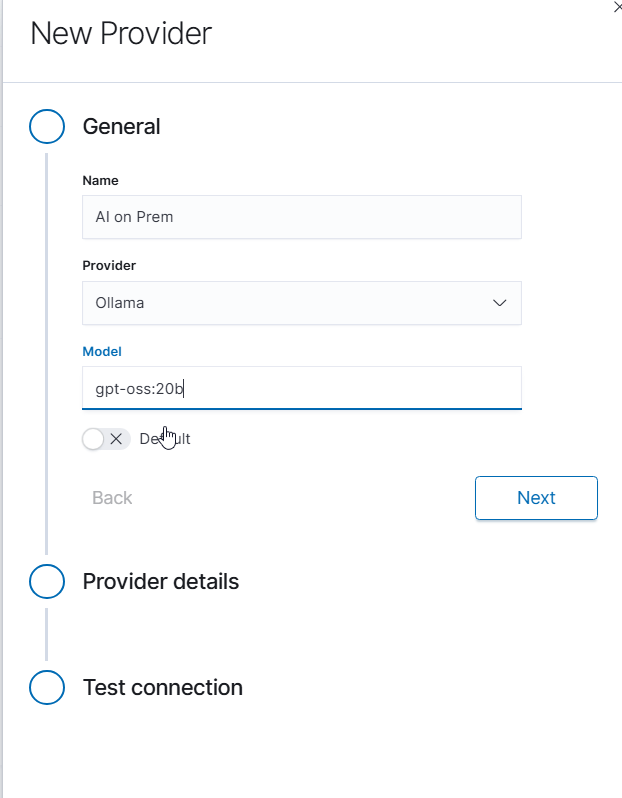
Click Next to proceed to provider details.
In the Provider details section, enter the connection information:
URL: Enter the address of the appliance, including the API port, for example
http://10.0.0.12:11434. Port 11434 is the Ollama default.
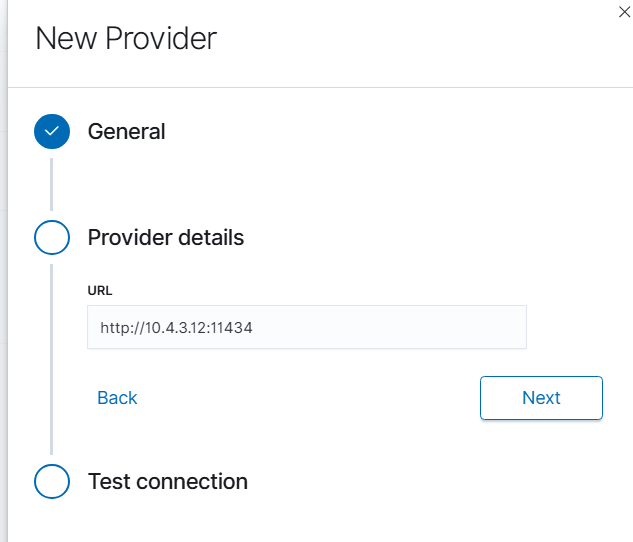
Click Next to proceed to connection testing.
The Test connection step checks the connection to your AI on Prem device as soon as it opens; click Test to run the check again. Save connection becomes available only after a successful test.
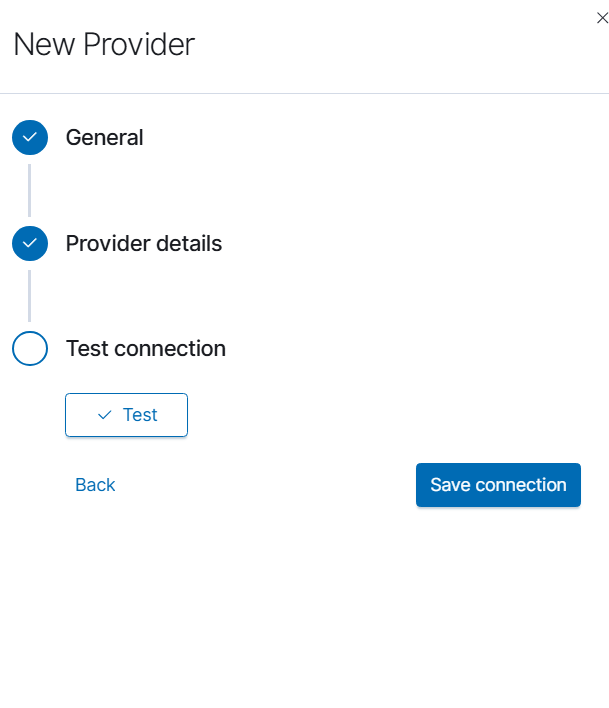
Troubleshooting:
If the connection test fails, or keeps running for minutes because the address does not answer, verify the following:
The AI on Prem device is powered on and connected to the network
The URL is correct and reachable from the Energy Logserver GUI node
Network routing is properly configured between VLANs or network segments if applicable
Once configured, the AI on Prem provider will be available for use in AI Assistant prompts and can be selected as the default provider for your organization.
Prompts
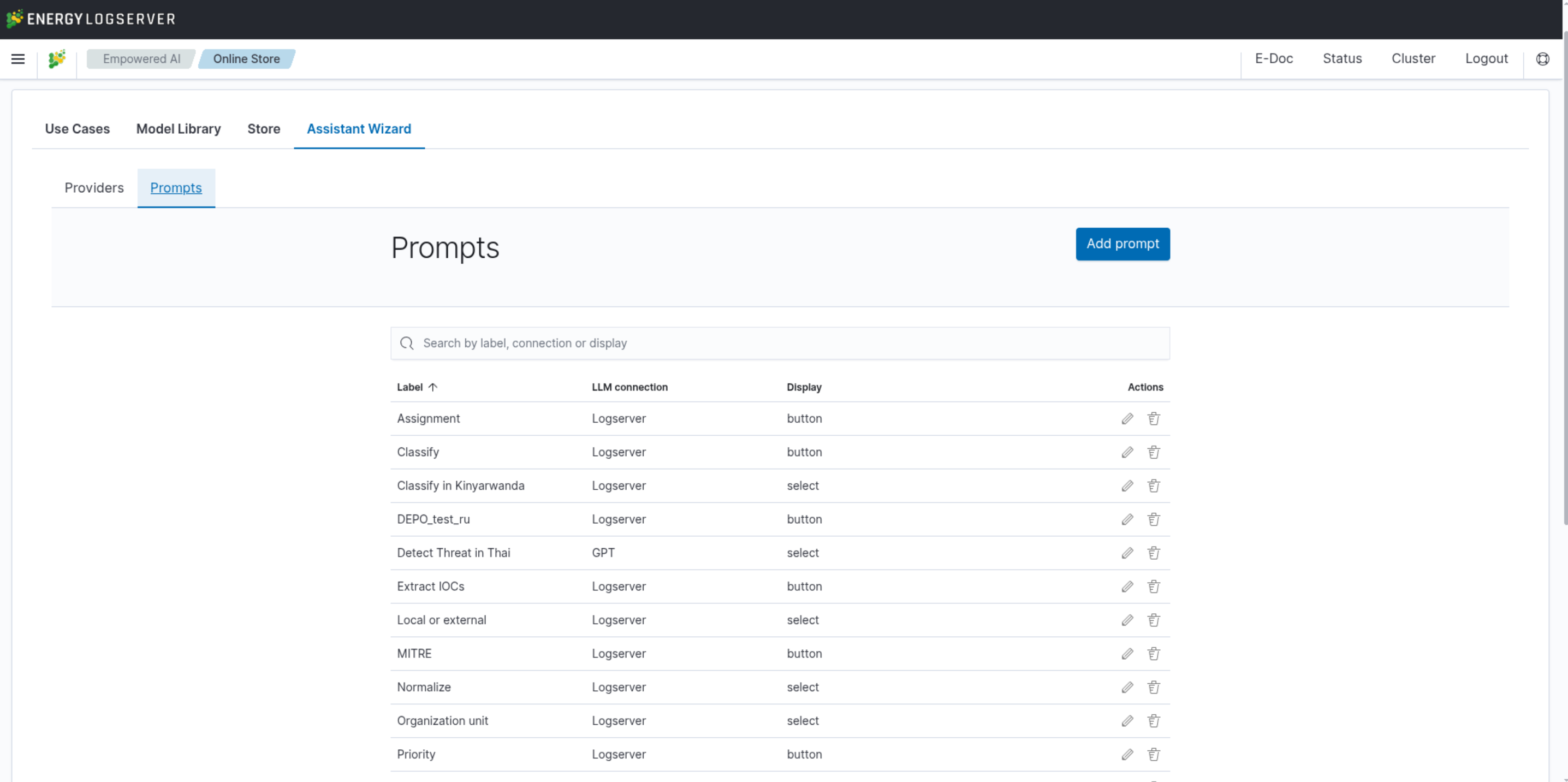
Energy Logserver allows you to create custom prompts for use in the AI Assistant. A prompt describes a problem to solve using a provided log entry, it can be any analytical task or technical inquiry that the model can address. The list above shows the prompts Energy Logserver ships with; they are described in AI Assistant in Discover.
Click Add prompt and fill in Name, Version, Provider (the connection the prompt uses), System prompt, and Display as: Button, Select list, or Draft to keep the prompt out of Discover for now.
Knowledge Chapters
Chapters are datasets that the AI Agent can read during a conversation. They turn arbitrary reference material, PDFs of internal policies, compliance documents, vendor manuals, or a slice of log data from Discover, into a searchable knowledge base for the model. Chapters are managed in the Knowledge tab of the Assistant Wizard.
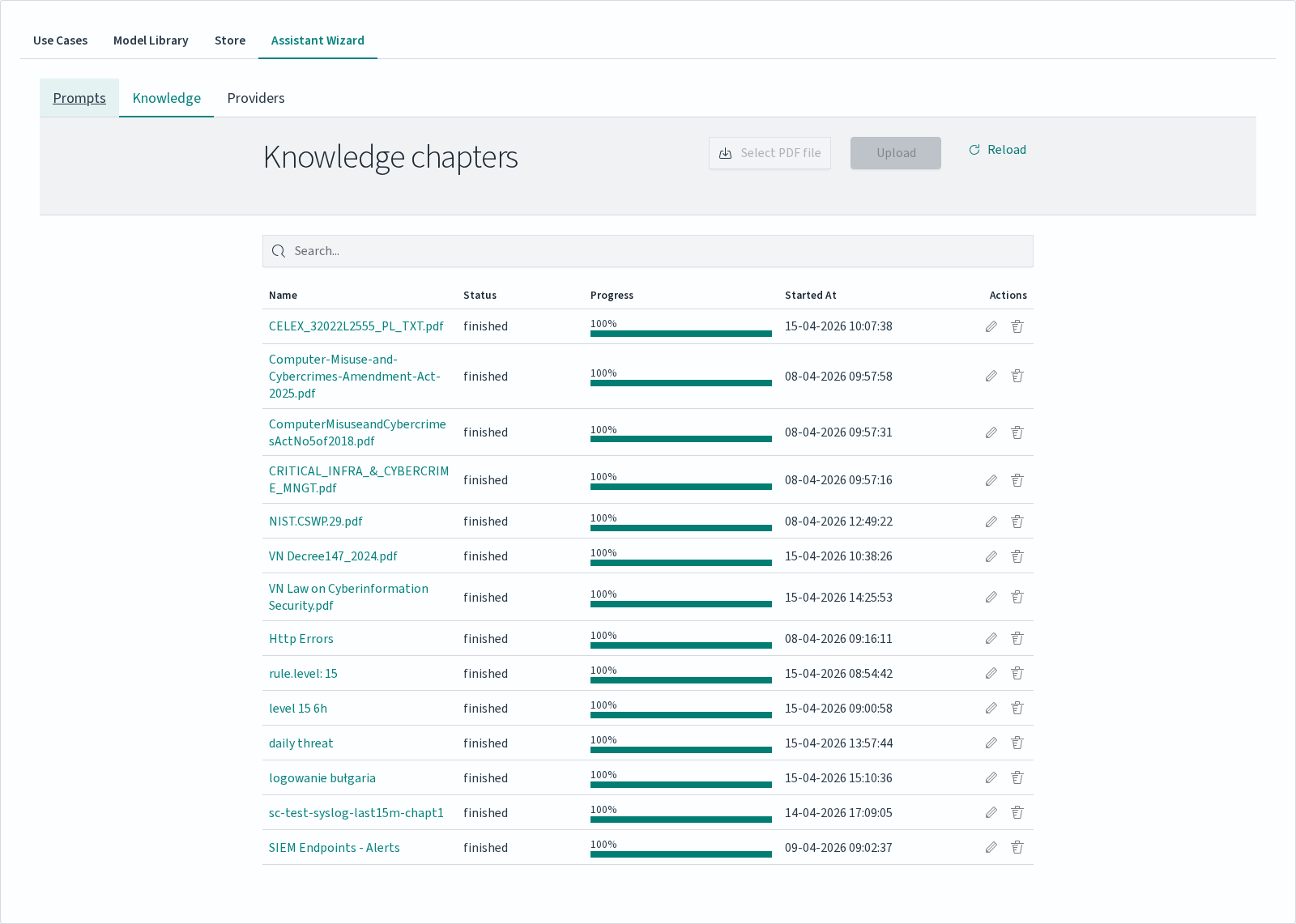
The Knowledge table lists every chapter with:
Column |
Description |
|---|---|
|
Chapter name. Names must be unique. |
|
Chapter category: Generic, Security, Application, Network, Compliance, or Performance. |
|
|
|
Vectorization progress bar. Reaches 100% when the chapter becomes usable. |
|
Timestamp of the chapter creation / upload. |
|
Edit (name and category) and Delete. Stop is shown until the chapter reaches |
Uploading a PDF Chapter
To add a PDF as a chapter:
In the Knowledge tab click Select PDF file and pick a file from your workstation.
In the Upload PDF file window, set the Name (the file name by default) and the Category (Generic by default), then click Upload. If a chapter with the same name exists, the upload stops with Chapter with this name already exists.
Wait for the status to change to
finished. The chapter is then available to attach in AI Agent conversations.
Use Refresh to update the status of in-progress uploads.
Note
The file is sent base64-encoded, which makes the request about a third larger than the PDF. With the default server.maxPayloadBytes: 2097152 in /etc/logserver-gui/logserver-gui.yml, the largest PDF you can upload is about 1.5 MB; larger files fail with Payload content length greater than maximum allowed: 2097152. To accept larger files, raise this value and restart the logserver-gui service.
Warning
In 8.1.0 Stop ends the vectorization process, but the chapter stays in running status and the partial index remains. Delete the chapter instead and upload it again.
Creating a Chapter from Discover
Log data can be turned into a chapter directly from the Discover tab, so that a Discover query becomes a persistent knowledge source for the AI Agent. Click Create chapter in the Knowledge chat panel, enter a Name and pick a Category. The chapter captures the current index pattern, time range, query, and filters, and is indexed in the same way as a PDF. The time range is saved as fixed dates, so the chapter does not pick up newer events.
Chapters created this way appear in the Knowledge table alongside PDF uploads and can be attached to conversations in the same manner.
How Vectorization Works
When a chapter is uploaded or created, Energy Logserver runs a vectorization job in the background. The job splits the source material into segments and converts each segment into a numerical vector with a local embedding model, sentence-transformers/all-MiniLM-L6-v2, shipped in /opt/intelligence/models. Vectorization does not call the LLM provider, and the model is loaded only from the local files, never downloaded at run time. These vectors are stored in a dedicated index per chapter, named .intelligence_knowledge_pdf_<file>_<timestamp> for PDF chapters and .intelligence_knowledge_index_<index-pattern>_<timestamp> for chapters created from Discover.
Note
The splitting strategy differs between PDF and Discover chapters:
PDF chapters are split into overlapping text chunks (default 1300 characters with 300-character overlap, recursive character splitter). A single PDF therefore produces many segments, and the
(N)count next to the chapter in the Attach chapters panel reflects the vectorized segment count.Discover chapters do not run through a text splitter. Each matched document becomes exactly one segment, the
(N)count equals the number of source documents. Records longer than the embedding model’s input window (256 tokens for the defaultall-MiniLM-L6-v2model) are truncated at indexing time; semantic search over the trailing part of such records will not match.
During an AI Agent conversation, the model performs semantic search against the attached chapters: the user’s question, translated to English, is vectorized with the same model, and the most relevant segments are pulled from the chapter indices and included in the model’s context. A chapter that is still running can already be attached, but the Agent searches only the segments indexed so far; the (N) count grows during vectorization.
Progress and estimated execution time are visible in the Knowledge table. Document throughput is reported while the job runs.
AI Assistant in Discover
To analyze a single log entry, expand it in Discover and open the Assistant tab. The answer appears on the right.
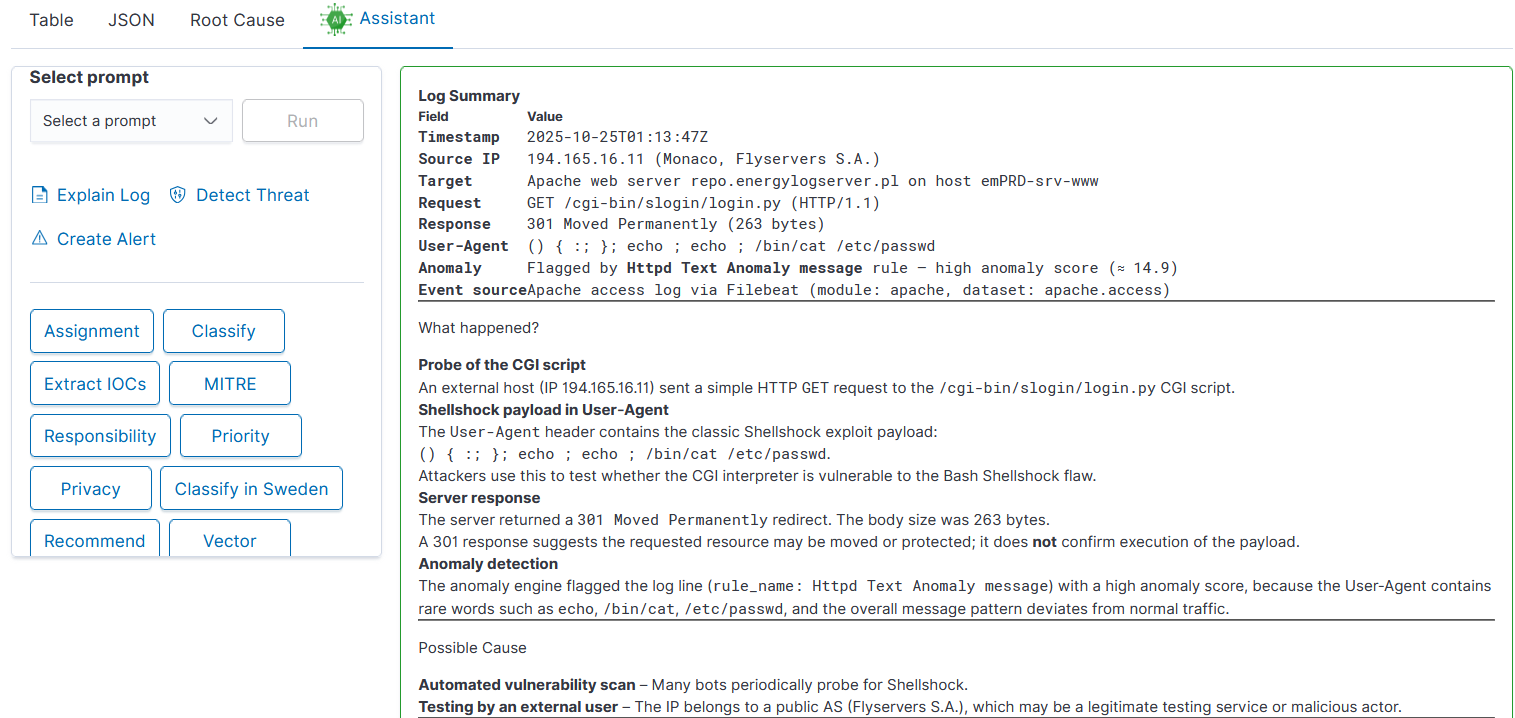
Quick Actions are built in and cannot be changed:
Explain Log: explains what the entry means.
Detect Threat: assesses whether the entry points to a security threat.
Create Alert: generates a query from the entry and opens Create alert rule with that query and the current index pattern. Enter the rule name and type, then save. The action needs the
alertrole and an index pattern with a time field.
Prepared Prompts come from the Prompts tab of the Assistant Wizard: prompts set as buttons appear as buttons, the others in the Select a prompt list with Run. Energy Logserver ships with these prompts:
Prompt |
What it does |
|---|---|
Assignment |
Routes the entry to the IT team that should handle it |
Classify |
Classifies the event |
Extract IOCs |
Extracts indicators of compromise |
MITRE |
Maps the event to MITRE ATT&CK |
Priority |
Assigns a severity |
Privacy |
Looks for personal or sensitive data |
Recommendation |
Recommends what to do next |
Responsibility |
Names the responsible team |
Vector |
Places the event in the Lockheed Martin Kill Chain and the Diamond Model |
Create Parsing Rule (list) |
Writes a Network Probe parsing rule for the |
Create Regexp (list) |
Writes a regular expression for the |
AI Agent in Discover
AI Assistant runs a single prompt against a single log entry. The AI Agent is the conversational counterpart: an open chat that can reason about large datasets using selected Knowledge Chapters as context. The Agent does not remember earlier messages: each question is answered on its own, so write every question in full.
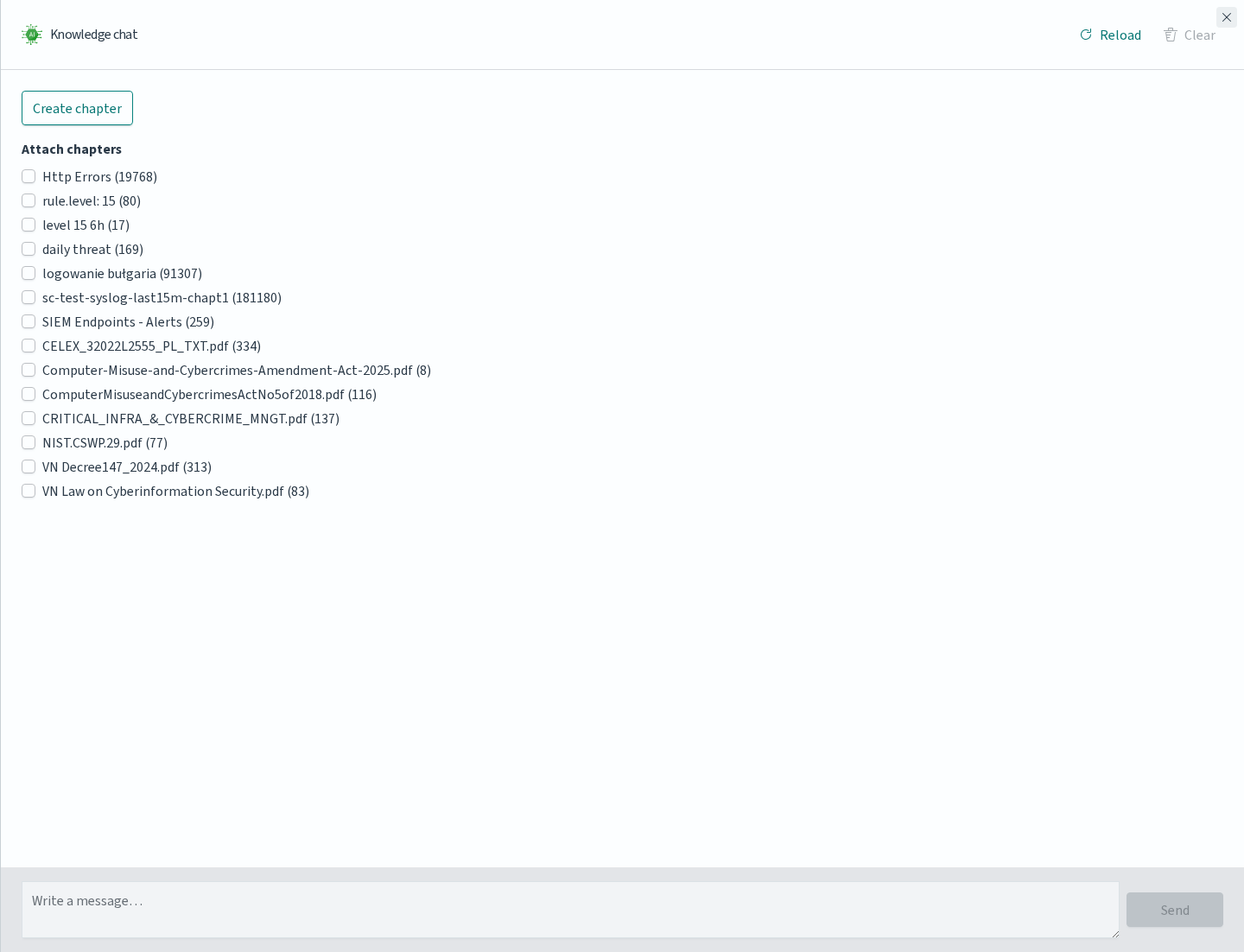
Open the AI Agent by clicking the Assistant button in the Discover toolbar. A Knowledge chat panel appears on the right side of the screen.
Attaching Chapters
The top of the Knowledge chat panel lists Attach chapters, grouped by category. Each group shows the number of chapters in it; chapters without a category are listed under Other. Expand a group to see its chapters, each with a checkbox followed by a number in parentheses. That number shows how much material the chapter holds, for PDF chapters, the count of vectorized segments produced from the file; for chapters built from Discover, the number of source documents captured when the chapter was created. A value of 0 means that no segment has been indexed yet, so the Agent has nothing to search in that chapter.
Select one or more chapters before sending a message, the Agent will consult all selected chapters during the conversation and combine them into its answers.
This is the recommended pattern when the same question needs both formal context (a PDF policy document, a compliance requirement) and live context from the cluster (a chapter created from a Discover query over recent logs).
Create chapter at the top opens the chapter creation flow directly from the chat, without leaving Discover. New chapters appear in Knowledge and become attachable once vectorization finishes.
Sending Messages
Type the question in the Write a message… field at the bottom of the panel and click Send. The Agent performs semantic search across the attached chapters, retrieves the relevant segments and uses them to compose an answer.
Note
The Agent does not read whole chapters. With up to 6 chapters attached, it passes the model at most 8 of the segments most relevant to the question, taken from all chapters together. With more chapters, it summarizes up to 3 segments from each chapter in a separate request and answers from those summaries. Segments that match the question poorly are skipped. Questions that need every record, such as counts or “is there any event that…”, can get incomplete answers. Check such answers in Discover.
In the panel header, Refresh reloads the list of chapters and Clear resets the conversation while keeping the attached chapters. Closing the panel (X) also keeps the selection of attached chapters.
When to Use Which
Feature |
Best for |
|---|---|
AI Assistant |
A single action on a single log entry, explain, classify, extract IOCs, escalate. Uses predefined prompts, returns immediately. |
AI Agent |
Questions about policies, manuals, or a set of records captured in a chapter. Uses attached chapters for grounded answers. |
Both features use the connections from the Providers tab: AI Assistant prompts use the connection assigned to the prompt or the default one, the built-in Explain Log, Detect Threat, and Create Alert always use the default one, and the AI Agent uses the AI on Prem connection if one exists, otherwise the Energy Logserver Provider. The AI Agent does not use other providers and does not work without one of these two.
Data Processing and Privacy
AI Assistant and the AI Agent send text to the LLM provider. Vectors are used only to find the relevant material in your cluster; the answer is always generated by the provider from text.
What Is Sent to the Provider
Feature |
Sent to the provider |
|---|---|
AI Assistant (a prompt or a built-in action run on a log entry in Discover) |
The whole log document ( |
Integration creator (AI Assistant tile in Integrations) |
The sample logs selected in the creator, at most 10 and up to 16,000 characters each. The Dashboards step also sends up to 5 documents from the new index with statistics and example values of each field, and the Alerts step sends one document from the new index with its field mapping. See Creating Integrations with the AI Assistant. |
AI Agent (Knowledge chat) |
The question, first to translate it to English, then with the answer request, together with the text of the selected segments of the attached chapters (see the note in Sending Messages). With more than 6 chapters attached, one extra request per chapter carries the question and up to 3 of its segments. |
Requests to the Energy Logserver Provider also carry the customer name from the license and the product version in the User-Agent header.
What Stays in Your Cluster
Chapters are vectorized locally with
all-MiniLM-L6-v2; the vectors are stored in the.intelligence_knowledge_*indices together with a copy of the source text.Each AI Agent question is written to
/opt/intelligence/logs/intelligence.logwith the user name: up to 80 characters of the question and up to 60 characters of its English translation. The log rotates daily.
Providers and Security
Choose the provider according to where the log content may go:
AI on Prem runs on your own hardware, so the text sent to the model stays in your network.
The Energy Logserver Provider runs in the Energy Logserver data center. Energy Logserver connects to it over mutual TLS with the client certificate delivered with your license.
External public providers such as OpenAI and Fireworks receive the text under their own terms. They are not recommended for production environments handling sensitive security data. Use them for testing and evaluation only.
Availability
AI Assistant is available at no additional cost for customers with an active support agreement. The Assistant tab in Discover, the Knowledge chat, and the Assistant Wizard require the Assistant module in the license; without it, Energy Logserver shows a message that the feature is only available if your license includes the “Assistant” module. AI on Prem is a separate hardware offering, contact your Energy Logserver representative for details. Integration with public providers is handled directly between you and the provider.
Important
AI Assistant is a supporting tool. Results from the LLM should be treated as one input and always verified by a security analyst before making operational decisions.